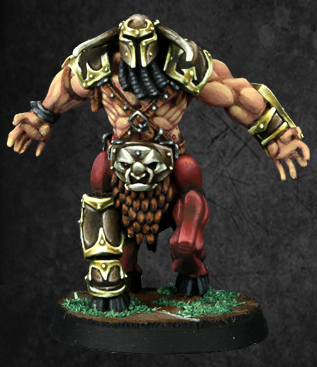
There's a few ways to do it

. To be honest, for one of the images above I just google'd it, clicked on the image I wanted, then right-clicked and selected "Copy image address".
Then I pasted it here in between image tags. You can type in image tags the following way, using square brackets instead of parantheses:
(img)http://sirenminiatures.com/sites/default/files/14315_1578226619123207_6885005772688434280_n_0.png(/img)
If I used square brackets instead, it would show the first pic from my post above!
For the second image in my post above, I couldn't find one I wanted and actually cropped my own. So, I found it elsewhere, saved it to my computer to do the editing, then wanted to upload it. To do so, I simply went to the Dakka Gallery and uploaded it there:
http://www.dakkadakka.com/gallery/
After uploading it you can click on your profile and there is a link to your "gallery images". Once there, you can click on an image you've uploaded, and then on the bottom right are some options to copy and paste the image code. Specifically, highlighting the text under "Forums" will give you image code you can copy and paste right into your post on the forum, and it will also make it a link back to the gallery. If you click on the second image I posted above, you can see it links to the page where it is at in the gallery
Any more questions, feel free to
PM me!